Thursday, May 30, 2013

MS CRM 2011 ExecuteMultipleRequest SDK Message

When working with Microsoft Dynamics CRM 2011 SDK, more often similar request need to be made to CRM each operation. Thus during the Microsoft Dynamics CRM 2011 Update Rollup 12 a new message request has been added “ExecuteMultipleRequest” which accepts several request to execute them once.

ExecuteMultipleRequest will behave similar as if each was executed separately but this will improve the performance drastically. Both Microsoft Dynamics CRM 2011 and Microsoft Dynamics CRM Online support this batching of requests into a single web service method call.

Below is sample scenario were Multiple Contact need to be created in CRM:

#region Execute Multiple with Results
    // Create an ExecuteMultipleRequest object.
    requestMultiple = new ExecuteMultipleRequest()
    {
        // Assign settings that define execution behavior: continue on error, return responses.
        Settings = new ExecuteMultipleSettings()
        {
            ContinueOnError = false,
            ReturnResponses = true
        },
        // Create an empty organization request collection.
        Requests = new OrganizationRequestCollection()
    };
  
for (int i = 0;i < 1000; i++){
    CreateRequest conactReq = new CreateRequest();
    
Contact ct = new Contact {
LastName = "Contact",
FirstName= "Name" + i;
};
conactReq.Target = ct;
// Add Each request to ExecuteMultipleRequest
requestMultiple.Requests.Add(ctRequest);

}

//Finally Execute the ExecuteMultipleRequest using ExecuteMethod
ExecuteMultipleResponse emResults = (ExecuteMultipleResponse)_orgService.Execute(requestMultiple);
<!--[if !supportLineBreakNewLine]-->
<!--[endif]-->

The Execute Multiple settings allow us to configure if we require responses and how to proceed when an error occurs. In Settings option ContinueOnError to true the final request is processed even if few records fail. In setting option ReturnResponses to true returns a collection of responses for each message’s response.


Hope this is helpful!

Friday, May 24, 2013

Dynamics SL 2011 – Inventory Reservations against Project


In a typical manufacturing company the risks of parts get stolen for other projects are high. Hence reserving the material against the project is very essential but challenging  with the earlier versions of Dynamics SL.
 

Goods for Project (GP)

Purchases with GP purchase type is not fully supporting the inventory reservations against Project. Given below are the factors.

  • No inventory impact during GRN though the items are physically available in warehouse till issuing to project. Inventory should be updated on the first hand to reserve it later.
  • Project commitments created during the purchase is getting relieved during the AP Voucher itself. Supposedly, the commitment should be relieved only after issuing to project which is not the case with GP type.  

Our recommendation to the customers was to create unique site id every time the new project is created in  SL and pursue the positive adjustments to the new site after GRNs. Though we achieved the reservation of parts to the project but not to the full extent due to the below hurdles.

  1. One Site ID for one Project & Task:  Site IDs increases with the number of projects & tasks causing the Site, Item site & Location table records unmanageable at times.  

  2. The IN batch creation will be handled by the customisation only during GRN. More the customisations more the maintenance cost.


Goods for Project Inventory

Microsoft is coming up with the solution to introduce the new Purchase Type “Goods for Project Inventory” with the latest release SL 2011 FP1.

This new purchase type updates inventory as the ― Goods for Inventory type does and also creates the necessary project commitments as the ― Goods for Project type does during purchases.


Inventory will now be allocated for the designated project and task and consumed only by the designated project in Sales Order Entry (40.100.00), Shippers (40.110.00), or Issues (10.020.00).

The regular inventory can be put into stock, later allocated to a project, and then only consumed by that project in Sales Order Entry (40.100.00), Shippers (40.110.00), or Issues (10.020.00).

This Purchase type claims to be the good alternate for the Inventory Reservations with Site id.
Have a wonderful day!!

How to customize module area page in GP2013

In previous versions of GP doesn't have the option to customize the contents in module area page. Also containers/Sections are fixed.

i.e. sales module area page in GP2010


In GP2013, it has a feature to customize the module area page by using Customize this Page option.

i.e. sales module area page in GP (current version-2013)


To customize the module area page,
1. Click Customize this page link.
2. It opens Customize Area Page window.
3. Select require options by clicking the check boxes.


4. Based on the options selected in the window, module area page gets reflected as shown below.

Below are few new features in the module page area.


1. Users can simply drag and set the containers in the module page area as they need.
2. Each Containers/sections (Setup, Cards, etc.,) has maximize and minimize options.


Hope this helps!!!

Keyboard Shortcuts in Dynamics NAV 2009 Versions

Many of us are fond of using Keyboards instead of mouse. The keyboard shortcuts not only helps us work faster but also more efficient.

This article will help us in using keyboard shortcuts in Dynamics NAV 2009 Versions. Most of us must be familiar with some shortcuts that are already given in the help documents or manuals.

Note: For those who are not too familiar with the standard shortcuts in NAV you can get it downloaded as a document by clicking here

The shortcuts that are listed below will not available in the standard Help document. We found these links very much helpful and sharing it across so that you can be benefited
Shortcuts
Classic Environment Action

Ctrl+ Page Down
Navigating to the next tab in the Card Form
Ctrl+ Page UP
Navigating to the Previous tab in the Card Form
Ctrl+F1
Toggle Marking the Particular object in the object designer. ( The same can also be applied in the NAV 2013 Development Environment)
Alt+F1
Display /Hide the Navigation Pane in the Classic Client( NAV 2009 or previous)
Alt+F12
Open the Navigation Pane designer
Ctrl+0..Ctrl+9
Navigate to the modules in the Navigation pane.
Ex: Ctrl+0 -> Shortcuts, Ctrl+1 -> Financial, etc..
Alt+ Space bar+ Right Arrow+ X
Maximize the Window in Classic Environment
Alt+ Space bar +Right Arrow+ n
Minimize the Window in Classic Environment
Ctrl+ Tab
Switch among open windows in Classic Environment


Keep using shortcuts!!!

Thursday, May 23, 2013

Capturing Save Event Arguments using Execution Context Parameter in CRM2011


When working with Dynamics CRM form scripting, there are several occasions where one needs to know the execution event for performing manipulation through scripting. For this reason Dynamics CRM provides execution context as an optional parameter that can be passed to a JScript library function through an event handler.
In below screenshot you can see “Pass execution context as first parameter” check box checked which passes execution context to the script function in CRM form.


There are different ways an entity record gets saved in Microsoft Dynamics CRM. This can be determined by getEventArgs() in execution context parameter as below:

function Form_onsave(executionObj) // exectuionObj passed as First Paramter
{
var eventmode=executionObj.getEventArgs().getSaveMode();

if (eventmode==2) { // returns 2 for Save and Close.
///
// Do the necessary logic
///
    }
}

The above code is an example to check “Save and Close” to perform some action. Similarly we can detect different save by return value from getSaveMode(). Below is the list of different save modes.

Entity
Event Mode
Value
All
Save
1
All
Save and Close
2
All
Save and New
59
Activities
Save as Completed
58
All
Deactivate
5
All
Reactivate
6
User or Team owned entities
Assign
47
Email (E-mail)
Send
7
Lead
Qualify
16
Lead
Disqualify
15

 Hope this was helpful!

Friday, May 17, 2013

How to disable homepage features in Dynamics GP through SQL Server???


Dynamics GP homepage can be customized for each user or role. GP don’t have an option to disable a particular or all features for all the users.


Follow the below steps to disable the homepage features for all the users: 
1. Open SQL Server Management Studio.
2. Take a backup of the DYNAMICS database.
3. Execute the following query in DYNAMICS database.


UPDATE DYNAMICS.dbo.SY08100 SET COLNUMBR = 0, SEQNUMBR = 0, Visible = 0 WHERE
    (DICTID = 0) AND ((COLNUMBR <> 0) OR (SEQNUMBR <> 0) OR (Visible <> 0)) AND USERID not in ('sa', 'DYNSA')


This script will disable all the homepage features for all users except sa and DYNSA.

Execute the below query to disable a particular feature:

UPDATE DYNAMICS.dbo.SY08100 SET COLNUMBR = 0, SEQNUMBR = 0, Visible = 0 WHERE (SectionID in (1, 2, 3, 4, 5, 6)) AND
    (DICTID = 0) AND ((COLNUMBR <> 0) OR (SEQNUMBR <> 0) OR (Visible <> 0)) AND USERID not in ('sa', 'DYNSA')

SectionID field values and the corresponding homepage feature:

1 à To Do list
2 à Quick Links
3 à Metrics
4 à My Reports
5 à Microsoft Office Outlook
6 à Connect

It is highly recommended to execute these scripts only by GP administrator. Also, during this script execution process all the users should be out of GP.

Note: If the Customize Home Page task is assigned to the User’s role then users can enable the features in Dynamics GP.

To restrict the Customize Home Page option, remove the Customize Home Page task from the corresponding user’s role by following steps

1. On the Microsoft Dynamics GP menu, click Tools, click Setup, click System, and then click Security Tasks.
2. In the Task ID area, select the <User Role> (or DEFAULTUSER).
3. In the Product area, select Microsoft Dynamics GP.
4. In the Type area, select Windows.
5. In the Series area, select System.
6. Click to clear the Customize Home Page check box to remove access to the window.
7. Click OK.


Hope this helps!!!

Dynamics SL - Customization failures and way to handle


Given below are the few thoughts on our investigation with the customization failure issue in Dynamics SL 7.0 or SL 2011.Here are the various error messages due to the customization failure.
  • “Fatal Exception occurred in VBA and was caught by .\vba.ccp at line 332”
  • “Customization has stopped working because VBA Trim function not recognize”
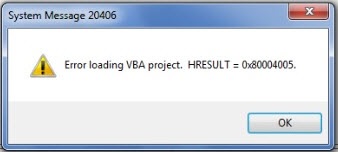
  • “System Message 20406 - Error loading VBA project”


You may try the below steps.
  • Locate the APC folder (C:\Users\User Name\AppData\Roaming\Microsoft Dynamics SL\APC).
  • By default the APC folder is hidden due to some security reason. You may need to enable the visibility of hidden files / folders.
  • Delete the swimapi.kpr and swimapiex.exd files. These files are responsible for the loading of customizations prior to screen load.
  • On launching the customized screen again, these files will be recreated.

This may resolve the customizations failures in Dynamics SL.