Showing posts with label Microsoft Dynamics NAV. Show all posts

Friday, July 5, 2013

Viewing Documents from One Responsibility Center

Whats this all about ??
Consider a scenario where a company has different work locations/branches across the country like where each location handles their own Sales Operation. Ideally from an end user perspective the requirement would be in a way where users from one location should only see the related records & documents from his/her location and not the Sale Orders from other Locations.
How this can be achieved?
The concept of Responsibility center plays a major role in Dynamics NAV where you can set up users in their daily routines so that the program retrieves only the documents relevant for their particular work areas. Users are usually associated with one responsibility center and work only with documents related to specific application areas at that particular center.
To set this up, you assign responsibility centers to users in three basic functional areas: Purchase & Payables, Sales & Receivables and Service Management.
Case Study:
Company named “ABC” has its branches across 3 different locations/branches namely ABC Loc1, ABC Loc2 and ABC Loc3 where each of the company handles its Sales operations individually and users from one location/branch must be restricted in viewing details of other branch
Keeping the above scenario in mind first we need to create all the branches of Company as responsibility centers
1. Create the Responsibility centers for the ABC Loc1, ABC Loc2 and ABC Loc3 like below
 

2. Open the User Setup window.

3. Select the user you want to assign a responsibility center to. If the user not is on the list, you must enter a user ID in the User ID field.
4. In the Sales Resp. Ctr. Filter field, enter the responsibility center where the user will have tasks related to Sales & Receivables.
 

Now for each and every Sales related screen\form we need to write the Code on “On Open Form” Trigger
Here I have created two functions to achieve this functionality.
Which are used to invoke the related responsibility filters (here ABC Locations) 
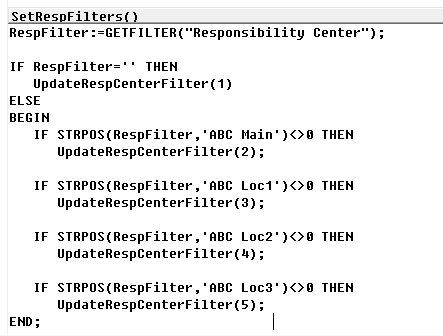
 Function to filter the sales order with responsibility center 

Finally function call to initialize the Responsibility center during OnOpenForm()
 
To create the new Sale orders by End users with in their respective locations, we need to call the function GetSalesFilter() from User Setup Management Code unit on
Form - OnNewRecord() Trigger.
With this we can able to full fill the requirement.
So that the users assigned to ABC Loc1 can only see ABC Loc1 Sale Orders and can create the Sale orders of same.
This is how we can achieve the functionality of accessing related documents to the related users.
Note: Users will still be able to view all posted documents and ledger entries across all the locations. This can be customized to restrict as how a responsibility center behaves.

Friday, June 21, 2013


How to Handle re-work process in Navision:
Consider a scenario where a product has been produced/Manufactured and transferred to another location. The manufactured product has some defects and has been returned for some rework.
Required Input
  • We need to create the Item variants for the items
Rework quantity creation process:
Steps to create the production order
  •  At the time of posting consumption Journals against the production order we have to select the Item with Variant code for the corresponding item
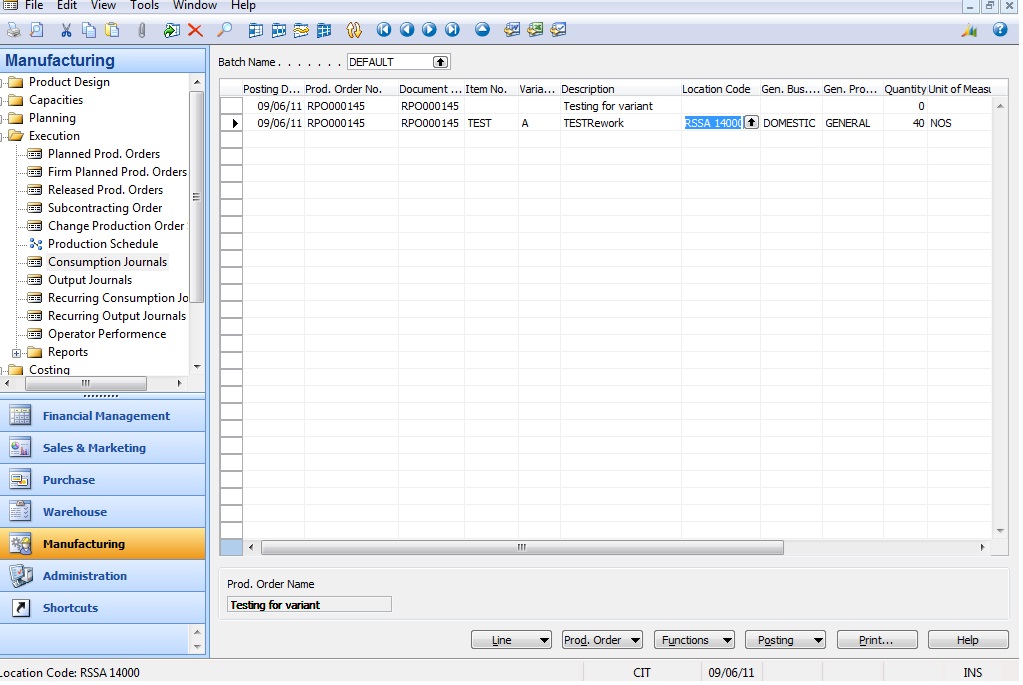
  •  We need to create separate line for the re-work quantity in consumption journals screen, for this line we need to enter the rework quantity with negative sign in the consumption quantity field. 
  •  Post the Consumption journals.
  •  In the output journals we need to mention the output qty as less qty.(by entering the scrap quantity (if there is any) and calculate the output quantity by selecting the option->Update Scrap Qty)
  •  Post the output journals.

Here we will explain the scenario with example.
Before finishing the production order, The Item (Test) has available quantity of 90 in Inventory
  • We have created the production order for the “Test” with 200 Quantity (refer screen shot below)

  • Now we are going to post the Consumption for this Production order, here our production order Rework Quantity is: 50
  • Post the consumption journal.
  • Post the Output Journal (ref image given below)
  • Finish the production order.
  • After posting if we go to the respective finished good, we will see the posted entries with different quantities in different lines. Like below 

Here we refer the first image of the Item on Inventory was 90 (i.e. old)
Now quantity is: 290
200 quantities were posted through consumption journal, but in inventory it will reflect with different names as mentioned in the image below (lines marked in blue).
Item without variant code quantity is: 150
With item –variant Code quantity is : 50

 
Making re-work production Order:
Now we are producing the Re-work production order to produce the FG. From the rework quantity only we are going produce the finished product.


  1. Go the consumption journal,
  2. Select the item which was posted with ‘ –ve’ quantity and with variant code.
  3. Enter the consumption qty as positive quantity.
  4. Post the consumption journal.

Now same way you need to post the output journals with the finished quantity.
So now the quantity with Variant code in the Main Item will be reduced, and it is consumed for the other production order.

Friday, June 14, 2013

Revaluation Journals & Reclassification journals


Revaluation Journals
This journal can be used for changing the inventory value of items, for example after a physical inventory.
The revaluation journal lets you see the existing value of an item and assign a new value to it.

Correction of Incorrect Posted Documents
If you have posted a document, for example a purchase order, and discover that some of the information on the lines was incorrect, you can correct this posted document.
In the following, an incorrect posted purchase order is used as an example.
There are three ways of correcting a posted purchase order:
·         Creating an identical credit memo and a new purchase order in order to reverse the posting.
·         Revaluing the posted items.
·         Creating a credit memo and posting it with an item charge.
Here we have taken the second option that is revaluing the Posted items
Path of using Revaluation journals is shown below
Warehouse->Inventory->Revaluation journals


In the above screen
Document no:  you can give your own document no or through no. series also we can generate automatic no series.
Item No: Select the item number which was posted with wrong cost in the purchase order
Applies-to Entry: Select the entry for which cost posted wrongly


Then enter the actual cost need to post for that item in Unit Cost (Revalued) column.
 
if you post this line, it will automatically adjust that cost of that old entry.
So if you go to the respective entry you will find the difference. Like below


Go to the item card and click on Inventory field and select the entry for which we have posted the latest cost.
Then click on the Cost Amount (Actual) field it shows the cost entries posted for that entry.


In which we can see all the entries posted against that item including adjustment entries.
Reclassification Journals:

Similarly you use the Item Reclassification Journal window to adjust inventory when you transfer items between different locations or between bins. 

Friday, May 31, 2013

Creating New Entity for Outlook Synchronization in Dynamics NAV


          This article assumes that the user already had hands on experience on the outlook synchronization with the standard entities in the Microsoft Dynamics NAV.
          
Consider a scenario of creating an entity for the customer table. Likewise you can create any table as an entity from the Dynamics NAV db.


Steps to be followed:

1.       In the Navigation pane, go to AdministrationàApplication setupàMicrosoft Outlook Integration.
2.       Select Outlook synch. Entities.
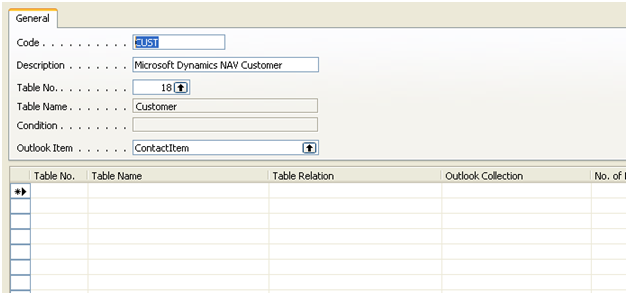
3.       Press F3 to insert a new entity. Enter the code as “CUST” also you can specify the Description as Microsoft Dynamics NAV Customer.
4.       Choose “Table No” as 18. The Table Name will appear automatically
5.       Now in the Outlook Item, Press F6 and choose Contact Item.
      
      Note: Consider creating a customer in the contact format in the outlook.


6.       Link the customer table field with the corresponding outlook property of the contact item.
7.       Select the Synch.Entity menu item and choose Fields. Now outlook Fields window open for you.
8.       Link the field with the corresponding outlook property like the image below           

9.       The Salespersoncode is the user-defined. So the outlook property needs to be typed manually

             Note:
                I have synchronized the customer based on the salesperson code. For example, the customer who           are all having Salesperson code =RS needs to be filter.

10.   Press Escape and get out of the window.
11.   Your New Entity is ready to work now.
12.   In the Navigation pane à go to outlook Synch. User Setup which is next to Outlook Synch. Entity
13.   Here you need to create a new setup for the Customer.
                 a.       Select the User ID
                 b.      Synch. Entity Code as CUST.
                 c.       The condition as Salesperson code=CONST(RS).
14.   Before proceeding further, you can check once whether we have assigned any customer as salesperson code RS. Now your screen will look like below.


Settings in Outlook:

1.       Click settings
2.       Now in the Connection tab. Click Test Connection for the changes will be refreshed in the settings.
3.       Now in the Folders Tab we can able to see the New Empty Text box for selecting the folder for the new entity (“Microsoft Dynamics NAV Customer”).
4.       Click browse and select any newly created contact folder. It won’t allow you to select any other folder. Since in the Navision we have configured to the Contact Item only.
5.       If you need Filters you can also apply.
6.       Click Apply and then Ok.
7.       Now Click Full synchronization.
8.       The details of the customer who is having the Salesperson code as RS will be displayed.

Keep creating more entities....

Friday, May 24, 2013

Keyboard Shortcuts in Dynamics NAV 2009 Versions

Many of us are fond of using Keyboards instead of mouse. The keyboard shortcuts not only helps us work faster but also more efficient.

This article will help us in using keyboard shortcuts in Dynamics NAV 2009 Versions. Most of us must be familiar with some shortcuts that are already given in the help documents or manuals.

Note: For those who are not too familiar with the standard shortcuts in NAV you can get it downloaded as a document by clicking here

The shortcuts that are listed below will not available in the standard Help document. We found these links very much helpful and sharing it across so that you can be benefited
Shortcuts
Classic Environment Action

Ctrl+ Page Down
Navigating to the next tab in the Card Form
Ctrl+ Page UP
Navigating to the Previous tab in the Card Form
Ctrl+F1
Toggle Marking the Particular object in the object designer. ( The same can also be applied in the NAV 2013 Development Environment)
Alt+F1
Display /Hide the Navigation Pane in the Classic Client( NAV 2009 or previous)
Alt+F12
Open the Navigation Pane designer
Ctrl+0..Ctrl+9
Navigate to the modules in the Navigation pane.
Ex: Ctrl+0 -> Shortcuts, Ctrl+1 -> Financial, etc..
Alt+ Space bar+ Right Arrow+ X
Maximize the Window in Classic Environment
Alt+ Space bar +Right Arrow+ n
Minimize the Window in Classic Environment
Ctrl+ Tab
Switch among open windows in Classic Environment


Keep using shortcuts!!!

Friday, May 17, 2013

Drag and Drop file using Control Add-Ins in Microsoft Dynamics NAV


Control add-ins for the Microsoft Dynamics NAV are built with the Microsoft .NET Framework–based assemblies that you install on computers that are running the Microsoft Dynamics NAV Windows client.        

To include a control add-in on a Role Center, you apply the control add-in on a page that is assigned to a part of the Role Center. Control add-ins are not supported by the Microsoft Dynamics NAV Web client or Microsoft Dynamics NAV Portal Framework for Microsoft SharePoint 2010

Here we will see an example of Drag and Drop a file in the text box controls. On drag and drop the text box will provide you the path of the file with the filename and extension.

Follow the below procedure for Drag and Drop a file:
    1.       Open Visual Studio.
    2.       Select C# class library and provide the name for the solution. Here we have given name as DragDrop.
    3.       A New Class file will open.
    4.       Add the following references:
  • System.Drawing
  • System.Windows.Forms
  •  Microsoft.Dynamics.Framework.UI.Extensibilty.dll, by default, it is available in Program Files\Microsoft Dynamics NAV\60\RoleTailored Client folder.
   5.   Type the below code

using System.Drawing;

using System.Windows.Forms;

using Microsoft.Dynamics.Framework.UI.Extensibility;

using Microsoft.Dynamics.Framework.UI.Extensibility.WinForms;

using System.IO;


namespace DragDrop

{
    [ControlAddInExport ("DragandDrop3.5")]
    public class DraGDroP:WinFormsControlAddInBase

    {

        TextBox txt;

        protected override Control CreateControl()

        {

            txt = new TextBox();

            txt.MinimumSize = new Size(50, 0);

            txt.MaximumSize = new Size(500, Int32.MaxValue);

            txt.DragEnter += new DragEventHandler(txt_DragEnter);

            txt.DragDrop += new DragEventHandler(txt_DragDrop);

            txt.AllowDrop = true;

            return txt;

            throw new NotImplementedException();

        }

        private void txt_DragEnter(Object Sender, DragEventArgs e)

        {

            if(e.Data.GetDataPresent(DataFormats.FileDrop,false))

            {

                e.Effect =DragDropEffects.All;

            }

        }

        private void txt_DragDrop(Object sender, DragEventArgs e)

        {

            try

            {

                int index = 0;

                string data;

                string[] filecollection =(string[])e.Data.GetData(DataFormats.FileDrop );

                foreach (string file in filecollection )

                {

                    //this.txt.Text = Path.GetFileName (file);

                    this.txt.Text = Path.GetFullPath(file);

                    }

                data=this.txt.Text;

            }

            catch (Exception ex)

            {

            }

        }

    }

}
 
 
  6.    Now we need to Sign the Add-In assembly
  7.       Go to Project propertiesàsigning.
  8.       Select the checkbox “Sign the assembly”. Now choose a String Name key.
  9.       Click New. Specify the name and protect your assembly with Password.
  10.   Save and Build the Solution.
  11.   Copy the assembly dll from the folder you have saved. By Default, C:\My Documents\Visual Studio\Projects\[Addin Project name]\bin\Debug.
  12.   Paste the dll in the Add-Ins folder of the Role Tailored client. By default, C:\Program Files\Microsoft Dynamics NAV\60\RoleTailored Client\Add-ins.
  13.   Now we need to create a Public Key token.
  14.   Follow the link for creating public key token. http://msdn.microsoft.com/en-in/library/dd983825.aspx
  15.   Copy the Public key token created.
  16.    Now Open table Client add-in(2000000069) in Dynamics NAV.
  17.   Type the Control Add-in name as “DragandDrop3.5”.
 18.   Paste the copied Public Key.
  19.   Now Exit from the table.
  20.   Create a New Page in Page Designer. Like Below image.
 
 
21.   Go to the Control Add –in Property of a Field “Drag a File and Drop” and Choose the Public key token that created for this add-in.
22.   Save, Compile and Run the Page.
23.   Now drag a file from any of your folder and place in the text box.
24.   Refer the below image
 
Hope this helps in dragging a file and retrieving its full path by dropping the file.