Showing posts with label Microsoft Dynamics CRM. Show all posts

Tuesday, August 6, 2013

Load image dynamically in Print Preview form in CRM 2011 using JavaScript

As we know Microsoft Dynamics CRM 2011, provide the capability to view the entity form in print preview mode.
The print preview mode is not fully compatible with the script that is deployed – say the script that displays the image dynamically in the print preview mode. This limitation can be overcome with the help of work around way that is discussed below.
SCENARIO:-
Dynamically load the image on print preview mode that is attached to the Notes.
Solution:-
Configured the web-resource, retrieve the image and load it.
Below steps to configure the web-resource:-
Step 1     Configure the new HTML Webresource file in the form. 
Step 2     Retrieve the image file and load into the configured webresource (above).


Step 3     Below code snippet to retrieve the image (attached to the Notes) and configured into the   webresource.

Code Snippet:
function ShowPrintPreviewImage() {
    var serverUrl = top.opener.Xrm.Page.context.getClientUrl();
    var odataPath = serverUrl + "/XRMServices/2011/OrganizationData.svc";
    var retrieveReq = new XMLHttpRequest();
    var CurrentRecordId = top.opener.Xrm.Page.data.entity.getId();
    if (CurrentRecordId != null) {
        retrieveReq.open("GET", odataPath + "/congruent_accountSet(guid'" + CurrentRecordId + "')/ congruent _account_Annotations", false);
    }
}


function retrieveReqCallBack(retrieveReq) {
    for (var i = 0; i < entity.results.length; i++) {
        var fileName = new Array(100);
        var sampleimagefileContents = null;
        fileName[i] = entity.results[i].FileName;
        if (fileName[i] == "sampleimage.jpg") {
            sampleimagefileContents = "data:image/jpg;base64," + entity.results[i].DocumentBody;
        }
    }
}

Below Steps to load the image dynamically in the Print Preview Mode:
Step 1                 Create/Configure another Web-resource (Image displayed dynamically) in the entity form. 
Step 2                 Make invisible the HTML Web-resource in the footer section.

Step 3                 The below method (displayimage) needs to be invoke in the on-load of invisible HTML (refer above).

Code Snippet:

function displayimage() {
        if (top.location.href.indexOf("/print/print.aspx") != -1) {
          var img = ShowPrintPreviewImage();
            if (img != null) {
                img = top.frames[0].document.getElementById("WebResource_SampleImageSection");
                img.src = sampleimagefileContents ;
            }           
        }
    }
Step 4                 Finally, the image will be display in the Print Preview Mode as shown below.


Hope this blog will be more helpful for those who come across this scenario!!!!!

Friday, July 19, 2013

Providing permission to access MS-Office application through CRM Plugin

More often business need arises to update MS office word or excel with the data from MS CRM. But accessing MS Office applications using plugins result in security issues as these applications restrict CRM plugin directly accessing them. This need a special permission to be setup at the MS Office components which allows them to access via CRM plugin. Here I have provided the steps to achieve the same.

You must give the following permissions to office application to enable the access:

1.        Activation & Access Permission.
2.        Set the Identity.

Steps to provide the Activation & Access Permission:

Go to Control Panel->Admiration Tools->Component Services->Computers->My Computer->DCOM Config.


Click Microsoft Excel Application -> Properties.

Select customize option under the Security tab (Security->Launch and Activate Permission->customize & Security->Launch and Access Permission->customize).

Click edit and provide the administrator permission:


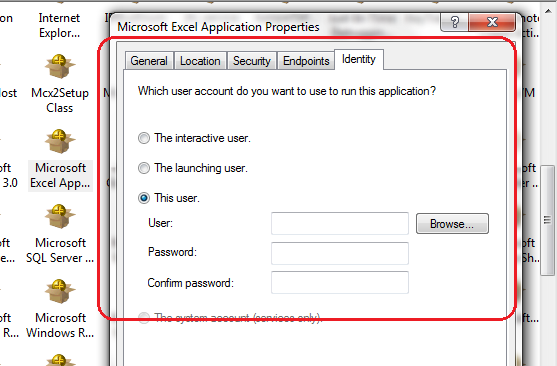
Set the Identity.

Select user option under the identity tab and provide the administrator username & password as shown below:


After providing these permissions, you could try access the Excel application programmatically with the following code from plugin:

ExcelSheet.Excel.Application excelApp = new ExcelSheet.Excel.Application();
string myPath = @"E:\File Maintanence\Sample.xlsx";
excelApp.Workbooks.Open(myPath);
int rowIndex = 1; int colIndex = 1;
excelApp.Cells[rowIndex, colIndex] = "Sample two";
excelApp.Visible = true;

Hope this blog helps!!!!!

Step to enable intelligence for MS CRM Form Scripting in Visual Studio

MS CRM Developers when working with SDK are given a quick and easy way to add analytics using the intelligence while coding through VS. But comparatively when they work with Xrm scripting they find it difficult to know the syntax and usually spend more time in troubleshooting for a syntax error than other issues.

But MS provides options to enable the intelligence for MS CRM Xrm scripting in Visual Studio by installing the Xrm.Page.Library Template. Below are the step for the same:

1.               Download the latest Microsoft Dynamics CRM SDK (v5.0.14).
2.               Install the XRM.page.Library template using the exe.file. This will be  located in the following path: SDK\Templates\Xrm.PageScriptProjectTemplate\xrmpagescriptdevelopmentprojectcs_vs2010


3.               Select the option based on your Visual Studio edition and VB/CS
a.          Xrmpagescriptdevelopmentprojectcs_vs2010
b.          Xrmpagescriptdevelopmentprojectcs_vs2012
c.           Xrmpagescriptdevelopmentprojectvb_vs2010
d.          Xrmpagescriptdevelopmentprojectvb_vs2012


4.               Create your JS file with the reference of XrmPageTemplate.js.
/// <reference path="XrmPageTemplate.js" />
5.               Now the intelligence will be enabled in Visual Studio.


I hope this blog will more helpful for the CRM developers!!!!!!


Thursday, June 13, 2013

Use of Shared Variables in Dynamics CRM 2011 Plugins

Introduction of Shared Variables in MS CRM2011 Plug-in might not been used by most of us, as we are not aware of its unique feature. This Shared Variables will be useful for sharing the data during complex plug-in development by sharing the data between plug-ins registered on both the pre and post events.

Any values can be stored in the plugin context of Pre-event will be available in the Post-event of the plugin. This way we can avoid storing the values in a custom attribute. Certain data validation which needs to be done at post-event can be achieved by passing the value from pre-event of the plugin. This also helps for performing business logics like updating related records asynchronously.

The below code snippet illustrates the usage of Shared Variable.  This sample explains the data validation done at post-event operation based on the value received from the pre-event operation where a flag is updated with a value at the pre-event level and sent to the post-event through shared variable.

Pre-Create (Entity Name) Plug-in
if (pluginContext.MessageName == "Create")
                        {
                            if (pluginContext.InputParameters.ContainsKey("Target") && pluginContext.InputParameters["Target"] is Entity)
                            {
                                Entity targetEntity = context.InputParameters["Target"] as Entity;
                                if (targetEntity != null)
                                {
                                    bool setFlag = false;

                                    //Check data validation for attributes                                  
                                    string country = targetEntity.Attributes["address1_country"];
                                    OptionSetValue industryCode = (OptionSetValue)target.Attributes["industrycode"];
                                   
                                    // Country is US and Industry Type is Accounting are Preferred 
                                    if (country.ToLower() == "us" && industryCode.Value == 1)
                                    {
                                        setFlag = true;
                                    }                                   
                                    pluginContext.SharedVariables.Add("flag", setFlag);
                                }
                            }
                        }

Post-Create (Entity Name) Plug-in
if (pluginContext.MessageName == "Create")
                        {
                            if (pluginContext.InputParameters.ContainsKey("Target") && pluginContext.InputParameters["Target"] is Entity)
                            {
                                Entity targetEntity = pluginContext.InputParameters["Target"] as Entity;
                                if (targetEntity != null)
                                {
                                    if (pluginContext.SharedVariables.ContainsKey("flag"))
                                    {
                                        bool recievedFlag = (bool) pluginContext.SharedVariables["flag"];
                                        if (recievedFlag)
                                        {

                                        }
                                    }
                                }
                            }
                        }

This method lets you to pass data between plug-ins without having to customize the system by creating hidden fields on entities.

Note: SharedVariables (collection of key/value pairs) property is available in the IPluginExecutionContext of the execution pipeline.

Thursday, June 6, 2013

Synchronize MS CRM 2011 Reports with Report Server

Many of you have wondered about missing the out of box reports after installing MS CRM 2011 and SSRS connector or while you reconstructed the environment after a crash. Probably you might have unknowingly deleted the CRM OOB reports in CRM or Report Manager.


Don’t worry about this; as these OOB reports can be brought back anytime into CRM with the provision or tool provided by MS. You can manually synchronize the reports using the Tools available PublishReports.exe in \Program Files\Microsoft CRM\Tools folder on CRM server.

Run this in the command prompt:
Syntax – PublishReports.exe  <OrganizationName>>


Once this completed you can see the OOB Reports back in MS CRM 2011.


Hope this is helpful!!

Thursday, May 30, 2013

MS CRM 2011 ExecuteMultipleRequest SDK Message

When working with Microsoft Dynamics CRM 2011 SDK, more often similar request need to be made to CRM each operation. Thus during the Microsoft Dynamics CRM 2011 Update Rollup 12 a new message request has been added “ExecuteMultipleRequest” which accepts several request to execute them once.

ExecuteMultipleRequest will behave similar as if each was executed separately but this will improve the performance drastically. Both Microsoft Dynamics CRM 2011 and Microsoft Dynamics CRM Online support this batching of requests into a single web service method call.

Below is sample scenario were Multiple Contact need to be created in CRM:

#region Execute Multiple with Results
    // Create an ExecuteMultipleRequest object.
    requestMultiple = new ExecuteMultipleRequest()
    {
        // Assign settings that define execution behavior: continue on error, return responses.
        Settings = new ExecuteMultipleSettings()
        {
            ContinueOnError = false,
            ReturnResponses = true
        },
        // Create an empty organization request collection.
        Requests = new OrganizationRequestCollection()
    };
  
for (int i = 0;i < 1000; i++){
    CreateRequest conactReq = new CreateRequest();
    
Contact ct = new Contact {
LastName = "Contact",
FirstName= "Name" + i;
};
conactReq.Target = ct;
// Add Each request to ExecuteMultipleRequest
requestMultiple.Requests.Add(ctRequest);

}

//Finally Execute the ExecuteMultipleRequest using ExecuteMethod
ExecuteMultipleResponse emResults = (ExecuteMultipleResponse)_orgService.Execute(requestMultiple);
<!--[if !supportLineBreakNewLine]-->
<!--[endif]-->

The Execute Multiple settings allow us to configure if we require responses and how to proceed when an error occurs. In Settings option ContinueOnError to true the final request is processed even if few records fail. In setting option ReturnResponses to true returns a collection of responses for each message’s response.


Hope this is helpful!

Thursday, May 23, 2013

Capturing Save Event Arguments using Execution Context Parameter in CRM2011


When working with Dynamics CRM form scripting, there are several occasions where one needs to know the execution event for performing manipulation through scripting. For this reason Dynamics CRM provides execution context as an optional parameter that can be passed to a JScript library function through an event handler.
In below screenshot you can see “Pass execution context as first parameter” check box checked which passes execution context to the script function in CRM form.


There are different ways an entity record gets saved in Microsoft Dynamics CRM. This can be determined by getEventArgs() in execution context parameter as below:

function Form_onsave(executionObj) // exectuionObj passed as First Paramter
{
var eventmode=executionObj.getEventArgs().getSaveMode();

if (eventmode==2) { // returns 2 for Save and Close.
///
// Do the necessary logic
///
    }
}

The above code is an example to check “Save and Close” to perform some action. Similarly we can detect different save by return value from getSaveMode(). Below is the list of different save modes.

Entity
Event Mode
Value
All
Save
1
All
Save and Close
2
All
Save and New
59
Activities
Save as Completed
58
All
Deactivate
5
All
Reactivate
6
User or Team owned entities
Assign
47
Email (E-mail)
Send
7
Lead
Qualify
16
Lead
Disqualify
15

 Hope this was helpful!