Showing posts with label Microsoft Dynamics SL. Show all posts

Friday, August 30, 2013

Attachments Configuration in Dynamics SL 2011

In the prior versions of Dynamic SL till SL 7.0, there is always a need to preserve the soft copy of the document pertaining to the transaction. This has been addressed in the latest 2011 versions through the document attachment feature.

Ex:
1.  Attach scanned copies of invoices from vendor to the voucher in the Voucher & adjustment screen.
2.  Use it to attach a spreadsheet that you used to calculate the estimation of project in Dynamics.
3.  Use it to attach copies of Signed Contracts to the project in project maintenance.
4.  Multiple source document files can be attached.

It takes a little bit of set up to get to work, but once it is setup, it is very handy.

Attachments Configuration:

The source document files can be maintained from the SharePoint site or Network folder. If the source documents are detached, the files won’t be deleted from the external location.

Source document files can be attached to data items by using the attachments option on the Notes/Attachments icon on data entry screens.

The attachments should be configured in the Attachments Configuration screen of Dynamics SL and given below are the various routes.

Open SL 2011 --> Administration --> Maintenance --> Attachments Configuration (98.400.00)

Upload Destinations Area

             a.  Existing Folder Location:


Select Existing Folder Location to store source document files on a network folder.

Click Browse button and select the path of the network folder. The path selected appears in UNC. Specify the full path of the network folder.

This option is not available if you select “Use Doc Share settings” or “Existing SharePoint Document Library” option.

b.   Existing SharePoint Document Library:


Select Existing SharePoint Document Library to store source document files on a SharePoint document library. Specify the Internet address of the SharePoint document library in URL.
This option is not available if you select “Use Doc Share Settings” or “Existing Folder Location” option.

c.   Use Doc Share Settings: is another option. This is still under investigation and will come up with the proper configuration steps in the next SL post.

Hope this blog will be helpful to understand the concept of attachment configuration. 


Friday, August 23, 2013

Report ROI has stopped working in Dynamics SL

We often got the ROI has stopped working issue during click of print preview button in all Reports. We tried different ways to resolve the problem in our local environment. Finally we found the exact solution to this issue. We thought of sharing this issue with all Dynamics SL users. 

Issue:
 We got this error when tried to click the print preview button in all Report ROI.
 Environment: Dynamics SL 2011 FP1
 System type: 32 bit OS windows 7


Cause 1:
  • An invalid printer specified in Microsoft Dynamics SL Printer Options.
  • In a Terminal Server or Citrix environment, every time that you log on, the name of the printer may change slightly.

Solution: 
  1. Open Printer Options (98.220.00) and specify a valid printer / Use Windows Default printer.

Cause 2:
  • The DLL file “u2lsol4.dll” may missing in \WRKSTN\Windows\Crystal under SL  root folder

Solution: 
  • Browse the “u2lsol4.dll” file under the SL installation files and place it in to the above mentioned path.
  • Register the above DLL 


Friday, July 5, 2013

Keyboard & Mouse Shortcuts in Dynamics SL - Value Add to SL users

Here are the lists of Key Board shortcuts to add more value for Dynamics SL Users.

F1 – brings up the help screen for the active working screen.

F2 – Locate the cursors in the active field with selection. User can change the values easily without mouse help.
Date Field vs F2 Key
If users press the F2 key in date field,the Relative Date (98.240.00) popup screen will appear for changing the date value using Relative/Absolute template.
This way user can set the Day, Month & Year of the date easily without any confusion against the system date formats settings.

Period Field vs F2 Key
If users press the F2 key in Period field,the Relative Period (98.250.00) popup screen will appear for changing the period value using Relative/Absolute template.


F3 or Double-right-click – brings up the possible values list for the current field (if one exists). This will only ever work on string fields and dates.

SHIFT + F3 – brings up the Look up extended possible values for a field

F4 – allows the user to change the screen between Form and Grid view for the active grid level. Also Property window appears when we press F4 in standard screen customization.

F5 – clears the value in the active field. If the field is required, this function will generate an error message and not work, but for any other field it will allow you to clear the existing value.

F6 – brings up the Insert Object wizard in Standard screen customization

F7 – sets the active date field to the current business date and shows up the visual basic editor in standard screen customization.

F9 – brings up the notes screen for the active level (if there is a note for that level).

F10 – brings focus to the SL menu screen.

DELETE - Used to delete the focused detail line, focus on entity Delete entity after confirmation. Delete either batch or document after confirmation.

INSERT- Insert new row, entity and batch or document after confirmation.

CTRL + S - After completing error checks, save all changes in the current screen.

CTRL + E - Exports the grid detail to an Excel Workbook.
Note: In Dynamics SL 2011 user can export the possible values lists to Excel using CTRL+E.

ESC - Abandons all changes in the current screen since last save and refreshes display.

ALT + F4 - Closes the active screen.

SHIFT + F4 – appears the customized property browser for the selected control.

HOME – moves the cursor to the first segment of selected row in the Grid.

END – moves the cursor to the last segment of selected row in the Grid.

CTRL + HOME - moves the cursor to the first segment of first row in the Grid.

CTRL + END - moves the cursor to the last segment of last row in the Grid.

Keyboard shortcuts combine the ALT key with another key to take you to an area of a screen or to open a menu. The additional key is identified by an underscore (_) below a letter in the name of a screen area or menu option. For example, if we press ALT+ A opens up the Action Menu in the screen.

I hope these tips are useful in our day to day Dynamics SL transactions :)


Friday, June 21, 2013

Enable Company Selection Tab in ROI – Dynamics SL 6.5

A simple post this week explaining the way to enable multi-company option in SL 6.5!

The company selection is applicable for multi-company databases. In Dynamics SL 6.5, the company selection can be achieved only through the SL setups & Report Customizations whereas the same can be achieved in Dynamics SL 7 & 2011 without any setups & report changes.


Given below are the simple steps to enable the Company selection tab in Report ROI of Dynamics SL 6.5.

Step 1: Enable multi-company selection for the custom report.
·         On the Utility menu, click Report Control Maintenance.
·         In the Report Number Field, type the Custom report number, and then click Control Options.
·         Click to select the Multi-Company Selection Allowed check box, and then click OK.
·         Click Save, and then close the Report Control Maintenance (98.300.00) screen.

Step 2: Create links in your custom report to enable the access to company-specific data.
·         Open the SL report with multi company compatibility.
·         On the Database menu, click Database Expert.
·         In the Database Expert dialog box, locate the Available Data Sources section, and then expand Current Connections.
·         Expand the appropriate Microsoft Solomon application database, expand the second instance of this application database, and then expand Tables.
·         Click RptCompany, and then click the Add arrow to add the RptCompany table to the Selected Tables section.
·         Click the Links tab.
·         Smart Linking automatically creates links between the RptCompany table and the existing tables in the CpnyID field.
·         If the links are incorrect, click Clear Links. Then, manually create the links.
·         Click OK.

Step 3: Add the RI_ID formula to the report.
·         On the Report menu, click Select Expert.
·         In the Choose Field dialog box, click RI_ID, and then click OK.
·         In the Select Expert dialog box, click the RptCompany. RI_ID tab, and then click formula in the list that appears.
·         In the formula box, type the following:
{RptCompany.RI_ID} = tonumber (RIPARAM ("RI_ID"))
·         Click OK.
·         Click Save, and then close Crystal Reports. And then run the report through Solomon. 

Hope this post is helpful!!!

Friday, June 14, 2013

How to recreate X12 810 invoices in Dynamics SL 7.0 FP1?

There were few Customer instances where the outbound 810 files sent from Dynamics SL to the trading partner got rejected due to the missing or incorrect data. The user may need to correct the data and want to send the X12 810 files again.  While we explored and identified the way to do this in Dynamics SL 7.0 FP1, we thought of adding in our blog to help other EDI users. 

Recreate Outbound EDI Transactions (44.030.00): 

With this screen, the user can recreate the outbound files such as Invoices, Purchase orders, Shippers and Purchase Order Acknowledgements and can send to the trading partner.
This screen allows the user to specify selection criteria and selectively choose the records to be resent for each of the outbound transaction types. This process will reset the transactions selected so that the next time if the outbound process for the transaction type runs, data will be written to the outbound Common File Interface.

Following are the steps to recreate the Outbound invoice
·         Enter the Customer id in Search Criteria. If you are sure about the other filtering criteria like Invoice # and Date, enter the values in the respective fields.
·         Click  “Refresh” button  and system will load all the outbound invoices that were sent already. The 810 data to be sent newly to the trading partner won't be displayed in this screen.
·         Select the Outbound invoice using “Selected” check box.
·         Click “Begin processing” button to recreate the outbound files.
 
Create Outbound EDI Invoices (44.402.00)
Once the Outbound EDI Invoice selection has been completed, the user need to open the Create Outbound EDI Invoices (44.402.00) under E-Commerce Gateway module in Dynamics SL.
 

Click “Begin processing” button. 

This screen will send all the new EDI invoices to VAN/FTP. This screen will also identify the invoices selected in the Recreate Outbound EDI Transactions screen and resend those as the outbound 810 X12 files.

Hope this post is helpful!

Friday, May 31, 2013

Crystal report print Engine Errors in Dynamics SL

We got one requirement to Export report into PDF format while Printing the  invoice under Flexible Billing. We did some customization in the Invoice Print screen for the PDF Export Functionality. Also we faced several issues during the implementation in Production server. Here are the workarounds to rectify the below issues.
  
Crystal report print engine: 544 Access to reports denied. Another program may be using it.

This below error has been shown during the PDF Export into specified share folder.


Solution:


Ensure the SHARE and NTFS permissions to the mapped folder for the current user.

Crystal report print engine Error: 999 – Operation not yet implemented.


Solution:

1.   To make ensure if there are custom tables without proper access rights and give proper rights to SL Users.
2.   Fonts used in the report not supported by the system and Sub reports may be causing the problem.
Cannot start print job and Crystal Print Engine Error 567
When we try to print a report in Microsoft Dynamics SL you receive the following error messages.

Error Message 1

Crystal reports Helper Application for Solomon IV
Cannot start print job.
Report: <C:\sol\Solomon\Usr_Rpts\<XXXXX>.RPT

Error Message 2

Crystal Print Engine Error 567 – Error in File <C:\sol\Solomon\Usr_Rpts\<XXXXX>.RPT>; Page header or footer longer than a page.

To resolve this problem, use either of the following resolutions.

Solution:
  • Renaming the customized reports in \USR_RPTS. This forces the standard report to be run from the module directory. If the problem still continues to occur, use the following steps.
  • If there is a backup of the report file (Xxxx.rpt), restore the file from the backup.
  • Log off the workstation and then log back on. Make sure that you have the appropriate permissions to print.

Hope this post will be helpful for solving Crystal report issues with Microsoft Dynamics SL.

Friday, May 24, 2013

Dynamics SL 2011 – Inventory Reservations against Project


In a typical manufacturing company the risks of parts get stolen for other projects are high. Hence reserving the material against the project is very essential but challenging  with the earlier versions of Dynamics SL.
 

Goods for Project (GP)

Purchases with GP purchase type is not fully supporting the inventory reservations against Project. Given below are the factors.

  • No inventory impact during GRN though the items are physically available in warehouse till issuing to project. Inventory should be updated on the first hand to reserve it later.
  • Project commitments created during the purchase is getting relieved during the AP Voucher itself. Supposedly, the commitment should be relieved only after issuing to project which is not the case with GP type.  

Our recommendation to the customers was to create unique site id every time the new project is created in  SL and pursue the positive adjustments to the new site after GRNs. Though we achieved the reservation of parts to the project but not to the full extent due to the below hurdles.

  1. One Site ID for one Project & Task:  Site IDs increases with the number of projects & tasks causing the Site, Item site & Location table records unmanageable at times.  

  2. The IN batch creation will be handled by the customisation only during GRN. More the customisations more the maintenance cost.


Goods for Project Inventory

Microsoft is coming up with the solution to introduce the new Purchase Type “Goods for Project Inventory” with the latest release SL 2011 FP1.

This new purchase type updates inventory as the ― Goods for Inventory type does and also creates the necessary project commitments as the ― Goods for Project type does during purchases.


Inventory will now be allocated for the designated project and task and consumed only by the designated project in Sales Order Entry (40.100.00), Shippers (40.110.00), or Issues (10.020.00).

The regular inventory can be put into stock, later allocated to a project, and then only consumed by that project in Sales Order Entry (40.100.00), Shippers (40.110.00), or Issues (10.020.00).

This Purchase type claims to be the good alternate for the Inventory Reservations with Site id.
Have a wonderful day!!

Friday, May 17, 2013

Dynamics SL - Customization failures and way to handle


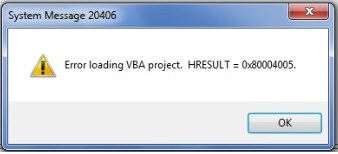
Given below are the few thoughts on our investigation with the customization failure issue in Dynamics SL 7.0 or SL 2011.Here are the various error messages due to the customization failure.
  • “Fatal Exception occurred in VBA and was caught by .\vba.ccp at line 332”
  • “Customization has stopped working because VBA Trim function not recognize”
  • “System Message 20406 - Error loading VBA project”


You may try the below steps.
  • Locate the APC folder (C:\Users\User Name\AppData\Roaming\Microsoft Dynamics SL\APC).
  • By default the APC folder is hidden due to some security reason. You may need to enable the visibility of hidden files / folders.
  • Delete the swimapi.kpr and swimapiex.exd files. These files are responsible for the loading of customizations prior to screen load.
  • On launching the customized screen again, these files will be recreated.

This may resolve the customizations failures in Dynamics SL.

Friday, May 10, 2013

Dynamics SL – Password protection for the Approval & Inquiry screens of Project Series

Password Maintenance (PA.PWD.00)
 (Open SL -> Project-> Project Controller-> Maintenance -> Password Maintenance)

Password Maintenance provides the entry and maintenance of security passwords, which are prompted for in certain screens. Specific key values, such as company ID, Employee ID, and subaccount, trigger prompting for a password in selected inquiry and approval screens throughout the system, particularly in review and approval screens. This screen is used to associate the key value with its corresponding password.

Field descriptions for Password Maintenance Screen given below.
1.      Password Type:
PV lookup in Password Type Valid password types are CPNY for company passwords, EMP for employee passwords, and ORG for organizational (subaccount) passwords. 
2.      Key Value:
Enter the secured key value to be password protected. For example, if the password type is EMP, enter the Employee ID to password-protect in the secured screens.
3.      Password:
Passwords can contain from 6 to 22 characters. They can include both upper- and lowercase letters in addition to numerals and special characters such as punctuation. When users enter their password on a secured screen, the characters in the password do not appear.

  Security reasons, it is important that this screen be restricted from unauthorized use.
Time Review and Approval Screen (TM.TRA.00)
  Open SL -> Project-> Time & Expense for Projects-> Processes -> Time Review and Approval
  • Select the Employee id with the password setup.
  • Enter Password window pops up prompting the user to enter the password.
Project inquiry (UZ.UPI.00)
  Open SL -> Project-> Employee Utilization-> inquiries -> Project inquiry
  • Select the Employee id with the password setup.
  • Enter Password window pops up prompting the user to enter the password.


Hope this helps!!